Run Your
Entertainment
Business. Simply.
Manage bookings, shows, activities, outlets, payments, and counter operations — all from one powerful platform designed for theme parks, venues, and experiences.
Everything you need.
All in one place.
Streamline your operational setup and customer flow with dedicated modules tailored specifically for entertainment.
Ticketing
Sell physical, online & RFID tickets quickly both online and from physical counters.
Learn moreShows & Events
Manage timeslots, scheduling, guest allocations, artist lineups, and multi-tier pricing.
Learn moreActivities & Rides
Track queue lines, ride availability, safety audits, and age-level ride permissions.
Learn moreMulti-Outlets
Sync physical booking booths, online websites, resellers, and third-party partners easily.
Learn morePayments
Deploy tap-to-pay counters, integrated QR billing, online checkouts, and clean refunds.
Learn moreReports
Leverage real-time counter sheets, tax-ready reconciliation, and custom marketing dashboards.
Learn moreFrom setup to ticket in minutes.
A quick, intuitive setup process designed to reduce onboarding friction and get you selling instantly.
Set Up
Define outlets, terminals, currency and basic details.
Add Experience
Load ticket configurations, time slots, and maps.
Sell
Accept bookings online or via physical terminals instantly.
Issue thermal tickets, barcode wristbands, or digital PDFs.
Track
Monitor live cash registers, outlets & visual analytics.
Powerful tools. Simple to use.
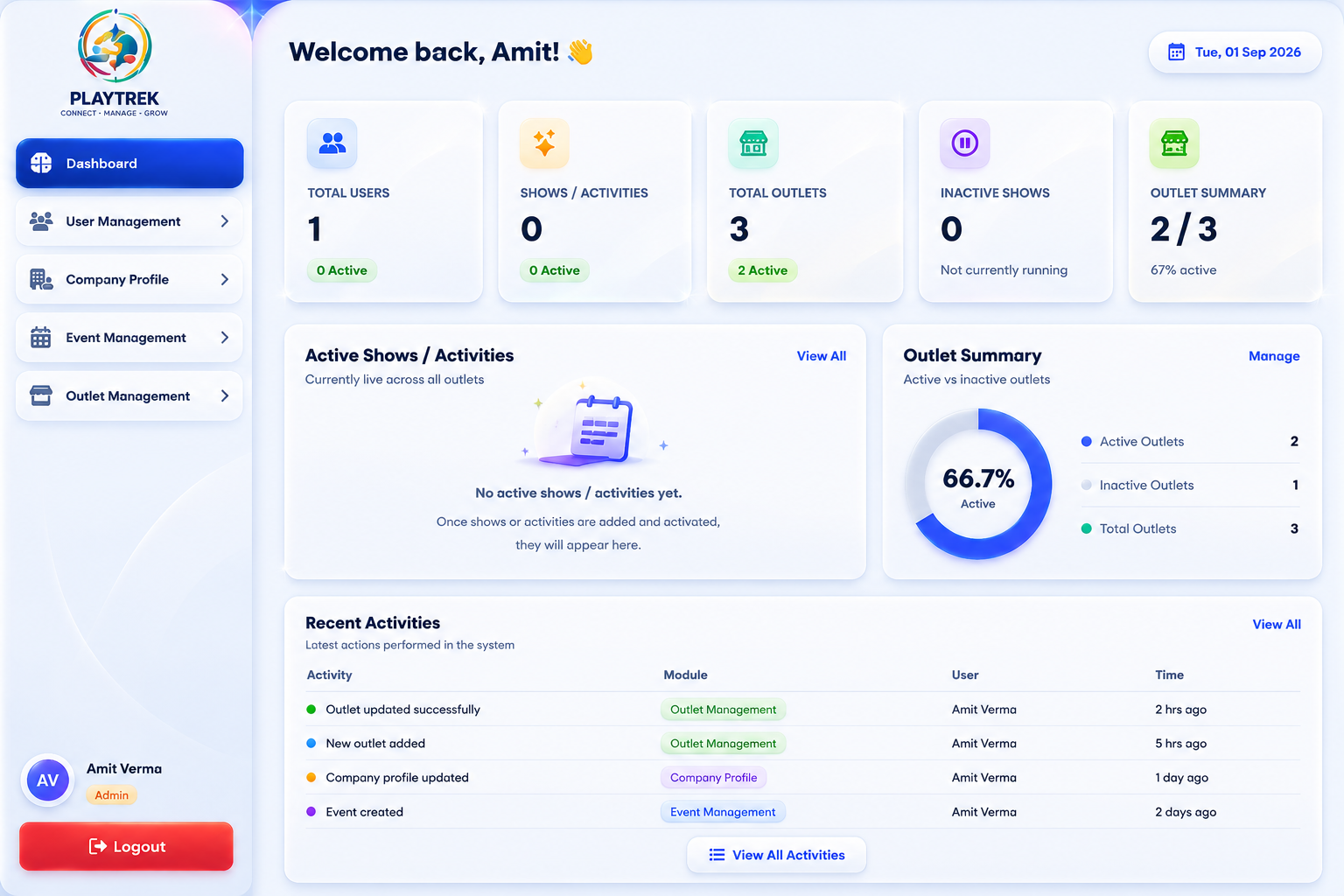
Keep your entire team connected. Monitor overall venue utilization, edit individual ticket tiers on the fly, and access cash desk sheets directly.
Built for every role.
Intuitive permission levels and optimized layouts tailored for everyone on your team.
Company Admin
Manage local tickets, coordinate marketing codes, edit shifts, and oversee terminal operations.
Counter Operator
Simplified ticketing interface, blazing fast ticket booking and cash register flow.
Multi-outlet sales & bookings at a glance.
Consolidate your live visitor numbers, daily earnings, and activity metrics into unified dashboards.
Visitor Traffic by Outlets
Live Capacity Status
Simple pricing. No hidden costs.
Scale your plan as your entertainment venue expands. Upgrade or downgrade anytime.
Free Plan
- 4 Outlets
- 4 User Profiles
- 6 Shows / Events
- 2 Devices
- 4 Modules Included
Acural
- 1 Outlet
- 3 User Profiles
- 8 Shows / Events
- 2 Devices
- 10 Modules Included
Monthly
- 10 Outlets
- 8 User Profiles
- 10 Shows / Events
- 10 Devices
- 10 Modules Included
Premium Plan
- 3 Outlets
- 4 User Profiles
- 3 Shows / Events
- 3 Devices
- 3 Modules Included
Frequently Asked Questions
A: An Admin (Company Owner) can register on PlayTrek through two pathways:
1. Self-Registration via Website or Play Store:
- Visit the PlayTrek website or open the PlayTrek mobile application.
- Click on Register / Sign Up.
- Fill in the required Company Details and Admin Details.
- Verify your mobile number and email ID using an OTP.
- Once verified, your account will be created, and you will gain direct access to your Admin Dashboard.
2. Creation by PlayTrek Super Admin:
- A Super Admin can directly onboard and register your company through the Super Admin Portal.
- The Super Admin can also assign your initial subscription plan.
A: The PlayTrek registration form is divided into two main sections:
1. Company Details:
- Company Name (Mandatory): Official legal or business name.
- Business Type (Mandatory):
- Amusement / Fun Zone
- Mall Activity
- Horse Show
- Concert / Event
- Exhibition
- Theatre / Show
- Adventure / Activity
- Other
- Company Email (Mandatory): Official business email address.
- Company Mobile Number (Mandatory): Primary business contact number.
- Address: Complete business or venue address.
- Country, State & City (Mandatory): Select the applicable location.
- Pincode: Enter the postal code.
2. Admin Details:
- Full Name (Mandatory): Primary account administrator's name.
- Mobile Number (Mandatory): Contact number for login and verification.
- Email Address (Mandatory): Email for admin login and notifications.
- Password (Mandatory): Secure password for the Admin Portal.
- Confirm Password (Mandatory): Re-enter the password for confirmation.
A: Yes. For security and to prevent fake accounts, self-registration requires dual-channel OTP verification:
- Complete the registration form and agree to the Terms & Conditions and Privacy Policy.
- Click Create Account.
- An OTP will be sent to your registered Mobile Number and Email Address.
- Enter the valid OTPs to verify and activate your account.
- Note: OTP verification is required only for self-registration. Companies registered by the Super Admin are verified administratively.
A: When registering through the self-service registration process:
- Your company will automatically be assigned the Free / Trial Demo Plan.
- You can upgrade your plan anytime from the Admin Portal.
- You can also subscribe to individual services based on your business requirements.
- Available plans include Basic, Premium, and Super Premium.
A: No. For security and platform integrity, the Admin can view company information but cannot directly edit critical business details.
- Editing Permission: Restricted exclusively to the Super Admin.
- Change Request: To update the Company Name, Email, Mobile Number, or Address, submit a Support / Change Request from the Admin Dashboard.
- The PlayTrek Super Admin team will review and process the requested changes.
A: No. PlayTrek operates as a SaaS platform with a strong focus on data privacy.
- The Super Admin cannot access or interfere with your customer bookings, ticket sales, revenue, counter transactions, or staff activities.
- Super Admin access is limited to platform-level management, including companies, subscription status, module assignments, hardware devices, and global system health.
A: Once registration and OTP verification are completed, follow these steps to start issuing tickets:
- Access the Admin Dashboard: Log in using your registered Email/Mobile and Password.
- Set Up Outlets & Users: Go to Outlet Management to set up your venue, then use User Management to create accounts for counter operators.
- Configure Events or Activities:
- Time-Slot Based Events: Configure schedules, dates, and time slots under Show / Event Management.
- Rides & Activities: Set up duration and ticket pricing under Ticket Management.
- Assign Devices & Payment Modes: Configure POS devices and thermal printers under Device Management and enable payment options such as Cash, UPI, and Card.
- Deploy Counter Operators: Staff can log in through the PlayTrek app or web terminal to book, print, reprint, and cancel tickets.
A: PlayTrek follows a three-tier role hierarchy:
- Super Admin (PlayTrek Owner): Manages the overall SaaS platform, companies, subscription plans, modules, and global POS device assignments.
- Admin (Company Owner): Manages the company, outlets, counter users, shows, rides, ticket pricing, and internal sales reports.
- User (Counter Operator): Handles counter/POS operations such as ticket booking, printing, reprinting, cancellations, QR scanning, and daily counter reports.
A: No. Admins can create custom roles for counter operators through Role Management, such as:
- Booking Access
- Printing Access
- Cancellation Access
However, an Admin cannot assign permissions that exceed the company's active subscription plan or the modules allocated by the Super Admin.
A: PlayTrek separates entertainment operations into two workflows:
- Show / Event Management: Designed for time-slot-based events such as Horror House, Live Shows, Concerts, and Magic Shows. Admins can configure dates, daily schedules, time slots, ticket limits, and venue entry controls.
- Ticket Management: Designed for activity or duration-based rides such as Panda Ride, London Bus, Toy Cars, and VR Games. Tickets are based on duration or validity, such as ₹100 for 10 minutes.
A: These modules are feature-gated and are visible only when the Super Admin enables and assigns them to your company's active subscription plan.
- If a module is not visible, check your current subscription and module access.
- You can request a plan upgrade or module add-on from the PlayTrek Super Admin.
A: Yes. Under Pricing Management, Admins can configure standard pricing, Adult/Child pricing, and Weekend & Special Event Pricing.
Note: Weekend pricing is available in the Basic, Premium, and Super Premium plans and is not included in the Free Trial plan.
A: PlayTrek supports multi-outlet management under a single company account.
- Admins can add multiple outlets, such as outlets at different malls or locations.
- Counter Users and POS devices can be assigned to specific outlets.
- Admins can view overall reports or filter sales by individual outlets.
- Premium: Supports up to 3 outlets.
- Super Premium: Supports up to 5 outlets.
A: POS hardware and thermal printers are managed through Device Management.
- Super Admin Control: Registers devices using Serial Number, Brand, and Model, then assigns each device to a specific company. One device can belong to only one company at a time.
- Admin Control: Once assigned, the Admin can assign devices to specific outlets or counter operators.
- Admins can also track device status such as Active, Maintenance, or Inactive and switch devices between outlets.
A: No. An Admin can only reassign devices between outlets within their own company.
- Only the Super Admin can transfer a device to another company.
- The device must first be unassigned from the previous company.
- Every device transfer is recorded in Device Assignment History.
A: The User (Counter Operator) interface is designed for fast and simple ticketing:
- Select the show/time slot or ride activity.
- Select the ticket quantity and payment method (Cash, Card, or UPI).
- Click Confirm & Sell Ticket.
- PlayTrek sends the ticket to the thermal printer and prints the entry pass with its QR code.
A: No. Offline counter payment setup is simple.
- Admins can enable accepted payment methods: Cash, Card, and UPI.
- During ticket booking, the operator selects the collected payment type for record keeping.
- Direct Payment Gateway integration is an optional feature available under the Super Premium plan for online bookings.
A: PlayTrek provides audit controls for ticket reprints and cancellations.
- Every ticket reprint is recorded through Reprint Tracking.
- Premium and Super Premium plans can enable Cancellation Approval, requiring Admin authorization before cancellation.
- All cancelled tickets are recorded in the Cancellation Report.
A: PlayTrek allows Admins to subscribe to individual services instead of upgrading to a complete subscription plan.
- Select only the modules or services required for your business.
- For example, you can subscribe to Ticket Booking and Ticket Printing without subscribing to unused features.
- This allows you to avoid paying for services such as Multi-Outlet Management or Advanced Analytics when they are not required.
A: Admins can access company-wide operational reports from the left sidebar.
- Daily Booking & Sales Report
- Ticket Sales & Activity-wise Report
- Show-wise Capacity Report
- Outlet-wise & User-wise Sales Breakdown
- Payment Method Breakdown: Cash, UPI, and Card
- Cancellation & Reprint Reports
A: Super Admin tracks subscription validity through the Plan Renewal / Expiry Report.
When a plan expires:
- The account moves into an Expired / Renewal State.
- Ticket generation at counter terminals is paused until the plan is renewed or extended.
- Your company data, outlets, users, and historical booking reports remain completely preserved.
Ready to simplify your entertainment business?
Start your risk-free trial today. No credit card required.